Adobe Illustrator Tutorials Vector Tips & Tricks Search related topics..

Have you ever wonder which vector file format is the good option to save for public sharing..?


As we may see on some websites that giving free vector files, they provide a few types of format for the vector file to download. The options just for different software users normally Adobe Illustrator, CorelDraw, PDF, EPS, etc. Here I show the comparison between saving as Ai vs EPS file formats as image shown below. Why Ai & EPS.. well I'm talking about saving vector files using Adobe Illustrator.. and which format is better, Ai or EPS. CorelDraw don't have to worry they normally accept Ai file, but not vice versa.


Look at the image above, the first file in the image shown is Ai file and the 3 EPS was saved differently (using Illustrator CS5) with EPS - CS3, CS5 & v.10 settings. They're not much differ among the 3 EPS files with different settings when saving it. But saving the same file as Ai format reduced the file to much smaller in size. Therefore I always prefer to sharing vector files in Ai file format.

Why EPS file format is bigger than Ai..?


In term of file size, I can't really tell specifically, perhaps EPS file format saved more information technically, due to widely supported vector file format to be read or open by most graphic software. So it takes more bytes with EPS, (I guess). But in the other hand, Ai file format is specific and it doesn't need 'extra bytes' (my assumption, lol).

Why Ai file format is better..?


These are the points I want to share about the advantages Ai vector file format:
  • Ai is smaller in size.
  • Ai is supported by many popular graphic software, paid version & free open source.
  • Ai is the industry standard in design & printing (any design firm will have the application).

    Tips to make the Ai file smaller.


    Ok here is the saving setting normally I used to keep Ai files small in bytes, near 10 times smaller..!!


    Whenever you want to save vector file in Adobe Illustrator, make sure the save option setting:
    • File > Save As > Save > Illustrator Options (as image shown above)
      > Disable the 'Embed ICC Profiles' > Ok
    This will reduce your file size significantly, compared to 'Embed ICC Profile' enable, when saving.
    For normal use, enable 'Embed ICC Profiles' just wasting the file capacity, imagine you deal with 100mb of Ai artworks, you might reduce +/- 90mb of the size probably. (Unless you really deal with ICC Profiles for the jobs).

    Choosing legacy version when saving the file for sharing to public or to output for printing is recommended. These will make sure no version conflict when the other machine using different Illustrator version.

    Am I missing something, share some tips that you know with us ;)


    Brush is one of the important element in Digital Illustration's artwork using Adobe Illustrator. We might be familiar with those ready made Brushes available in the software since the previous versions of Illustrator. But are they enough for variety of artworks or creativity..? Sure we will always love to download free Brushes available on the net. But there are plenty of it and most of them not suites our needs, some we don't have the time to preview or to know the results. Then the idea to customise our own Brushes for specific artworks is a good decision.

    Here are one of the comprehensive tutorial explained how to create Brushes profile width to be use in any Illustrator CS versions. The Brushes profiles shown as below..


    View from the source


    credit: vector.tutsplus.com | img brush: zcool.com.cn


    Converting a Pantone color to CMYK in Adobe Illustrator is just a click away.. but how to convert CMYK to Pantone color..? Before that, why we need to convert CMYK to Pantone color, you asked..? As designer, sometimes we need to have only spot color(s) in our artwork. Or perhaps a design that needs a specific color other than CMYK it self, so the extra spot color is needed in the artworks. Yes it means the artwork holds more than 4 colors, CMYK + Pantone.

    So here is the Tips on How To Convert CMYK To Pantone in Illustrator the easy way in this video tutorial.


    An another guide on How To Convert CMYK To Pantone clearly explained in text & images tutorial below..


    View the Tutorial..


    credit: vector.tutsplus.com & 4networking.biz
    Happy 25th Anniversary Adobe Illustrator ☺. Since 19 March 1987 it was shipped and being in the market, as the first software application for a 5 years old company. Well I just knew that Illustrator is the first software by Adobe.. and it was change the way designers and artist do their jobs. The Vector Application then conquer the industry. Read the story more from adobelife blog.
    Here are all the Adobe Illustrator's Splash Screen since the 1st version of the software till now. The woman image is a painting - 'The Birth of Venus' by Sandro Botticelli.


    The Birth of Venus (Illustrator must be female) lol..

    1987: Adobe Illustrator 1.1

    1988: Adobe Illustrator 88

    1991: Adobe Illustrator 3

    1993: Adobe Illustrator 5.0

    1996: Adobe Illustrator 6.0

    1997: Adobe Illustrator 7.0

    1998: Adobe Illustrator 8.0

    2000: Adobe Illustrator 9.0

    2002: Adobe Illustrator 10

    With new optimized software's engine & the new name, CS (Creative Suite)
    2003: Adobe Illustrator CS

    2005: Adobe Illustrator CS2

    Re-branding looks great
    2007: Adobe Illustrator CS3

    2008: Adobe Illustrator CS4

    extra dimension - perspective included
    2010: Adobe Illustrator CS5
    what next.. Ai CS6 on the way.. let see ; )


    src & img credit:
    • https://www.facebook.com/media/set/?set=a.10150625558263226.394954.64138473225&type=1
    • http://blogs.adobe.com/adobelife/2012/03/21/happy-25th-adobe-illustrator/
    A good artworks or visual designs need both combination of Vector & Raster graphic editor. That is the purpose and the differ between Adobe Illustrator & Adobe Photoshop, that many users still don't really understand 'why Adobe creates (and Designers using) both of it. Every time (non designer) asked me about these two graphic design software related and their purpose, I replied; "It's something like, why God creates woman when man can handle this world themselves". (Do we..?)

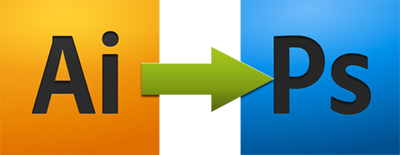
    Illustrator & Photoshop is like male & female (doesn't matter who's male & who's female in this case)☺ Sometimes we need to use Photoshop to completes Illustrator works and vice versa. Same goes to female that completes male, right..♥ Anyway, I'm talking about the 'communication' it should goes between these 2 software 'in action'.

    Ok lets say we done doing some (unfinished) artworks with Illustrator and there are some Layers in the Ai files, we need to transfer the job to Photoshop, with all the Layers and Texts editable in Photoshop. Simply Export the files from Illustrator to Photoshop.

    File > Export > Photoshop (psd)

    Well, I'm sharing this simple Illustrator Tips on how to do it.. please read from the source


    via: twitter.com/wegraphics
    src & img credit: http://wegraphics.net/blog/tutorials/illustrator-quick-tip-exporting-files-to-photoshop


    ----------


    Here another Tips on working with..

    Ps to Ai & Ai to Ps


    Read from the source: Illustrator files in Photoshop & Photoshop file in Illustrator


    src & img credit: http://creativefan.com/photoshop-illustrator-integration-tips/

    Today we showcase some of Typography related in Poster Design by designers mostly by typeface designers and they're called Typographers. Also some topic and infos about Typography and the anatomy. Checkout some of their Typography artworks.


    Here are some Free eBooks specifically for Typography you can read and study the use of it in designs and for web.. enjoy..

    credit:
    http:// flickr.com
    http://dailyinspiration.nl/this-weeks-web-design-91
    http://designbeep.com/2012/01/10/15-free-and-useful-typography-ebooks


    Here are 50 Illustrator Tutorials dated 21 March 2009, it must be Illustrator CS3 tutorials because the collections should be before of the date it was published in Think Design as 50 links to take a look.

    Personally Illustrator CS3 is the best choice to be start with if you wanna learn the basic of Adobe Illustrator, simply because Ai CS3 don't have (and you don't need those) some new fancy tools and features such as the bristol brush, perspective tools, etc.. and it will not confusing you with multiple artboards introduced. The best features in Illustrator CS3 for me is the simple but powerful 'Smart Guide' compared to CS4, CS5 (or new coming perhaps) which the new 'Smart Guide' seems too much in 'snap' abilities, and it's not possible to configure it as the previous.

    Anyway here are the topics covered in the collections of 50 tutorials:
    1. Basic Shading and Lighting
    2. Tutorial: Transform, Style, Blend
    3. Tutorial: make texture without leaving Illustrator
    4. Some Cool Introduction to Illustrator Videos
    5. Basic Drawing with Adobe Illustrator’s Paths & Pen tool
    6. Creating gradations with Adobe Illustrator’s Gradients & Blends
    7. Basic & Advanced Illustrator Drawing Techniques for Technical Illustrations
    8. Using the Pathfinder and Align tool in Illustrator
    9. Illustrator Pucker and Bloat Effect and more
    10. Tutorial: The Flare Tool
    11. Creating a 3D Gear
    12. Illustrator full spectrum spirograph
    13. Create a Vector RSS Icon with Illustrator
    14. Creating seamless patterns in Illustrator
    15. BMX Illustration
    16. Symmetric Illustration
    17. Soaring Vectors
    18. Creating Road Maps in Adobe Illustrator
    19. Realistic Photo Vector Tutorial
    20. Tropical Transparency Effect
    21. Ornate Lettering Process
    22. How to Design a Font From Start to Finish
    23. Live Color in Illustrator CS3
    24. Create 3D Can of Beans
    25. Blueprint-Style Text in Adobe Illustrator
    26. Logo Design Project Step by Step Walkthrough
    27. How to Create a Trendy Retro Type Treatment
    28. Design a Print-Ready Beer Label in Adobe Illustrator
    29. Tips for Working with the Gradient Mesh Tool In Illustrator
    30. How to Design a Classic Heraldic Figure
    31. 10 Free and Extremely Useful Illustrator Scripts
    32. Creating Sketchy-Style Vectors
    33. Creating A Wood Grain texture
    34. Creating Brushed Metal Texture
    35. How to Create a Stylized Vector Grasshopper
    36. Make 3D Yet Flat Looking Shopping Basket Icons
    37. Make a Torn Vector Desktop Wallpaper with Angled Text
    38. How to Create Colorful Abstract Artwork in Illustrator
    39. Use the power of Illustrator to create cool 3D infographics
    40. Master painting in Illustrator
    41. Adobe Illustrator Tutorial #1 - Adding Texture
    42. Adobe Illustrator Tutorial - Cutaway Technical Illustration
    43. Creating Vector Hair
    44. Create an envelpe icon with a satin feel
    45. How to Create a Vector Safari Compass in Illustrator
    46. Create camouflage patterns
    47. Create a Themed Repeating Pattern in Illustrator
    48. Creating geometric patterns in Illustrator
    49. Illustrator: The Tilde Trick
    50. From Sketch to Vector Illustration
    see all the collections via Think Design

    don't have the player..? tryout the Illustrator CS5


    img credit: Think Design


    An Illustrator script named Organize was created by demand of a user to designer and scripter, John Wundes. He is a scripts writer for Adobe Illustrator as in his website.

    Well this Organize script purpose is to organize (of course) Arrangements by size:
    • small to large
    • large to small
    • vertical axis
    • horizontal axis
    • left ↔ right
    • right ↔ left
    • random

    More info & download in http://js4ai.blogspot.com/2012/02/organize.html.
    Make sure to saved it in C:\Program Files\Adobe\Illustrator CS\Presets\Scripts or your default illustrator Scripts' folder.
    I've download it and will give it a try and will give my personal feedback perhaps ; )
    You can find all of his Adobe Illustrator Script's listing in his scripts archives.
    About Adobe Illustrator

    Illustrator is a vector drawing program. It is often used to draw illustrations, cartoons, diagrams, charts and logos. Unlike bitmap images that stores information in a grid of dots (called pixels), Illustrator uses mathematical equations to draw out the shapes. This makes vector graphics scalable without the loss of resolution.

    Advantages of vector graphics

    Scalable without resolution loss
    Lines are crisp and sharp at any sizes
    Print at high resolution
    Smaller file size Good for drawing illustrations


    Disadvantages of vector graphics

    Drawings tend to look flat and cartoon
    Hard to produce photo realistic drawings

    Common Uses for Illustrator

    1. Designing Logos


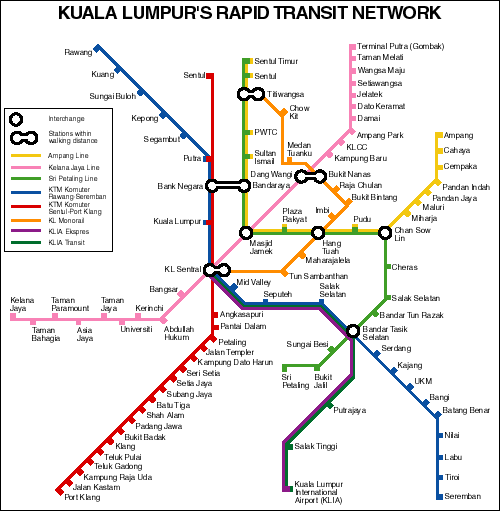
    2. Drawing Maps


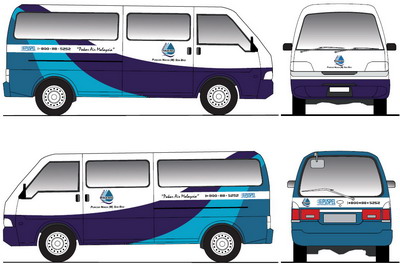
    3. Drawing Illustrations


    These are some samples that you can imagine what are the purpose of Adobe Illustrator for. Its not just that, in fact there are alot of other task that require this software to works with i.e Adobe Photoshop, InDesign, Flash, etc. The artworks created by this software can be saved to PSD format also can be converted (File > Export) to any image format you prefer.

    Note :

    The graphics created with Adobe Illustrator are called vector image.
    To share the artworks (these vector images), with others who don't have the software, can be save to PDF format and other people can preview with Adobe Reader (or any PDF reader).

    Next we will getting start to use.
    author
    vectorism
    designer, illustrator, founder of vectorise.net